
CC Switch
Open CC Switch from MiloRouter, then configure the provider, API endpoint, protocol, and model.
Open CC Switch from MiloRouter
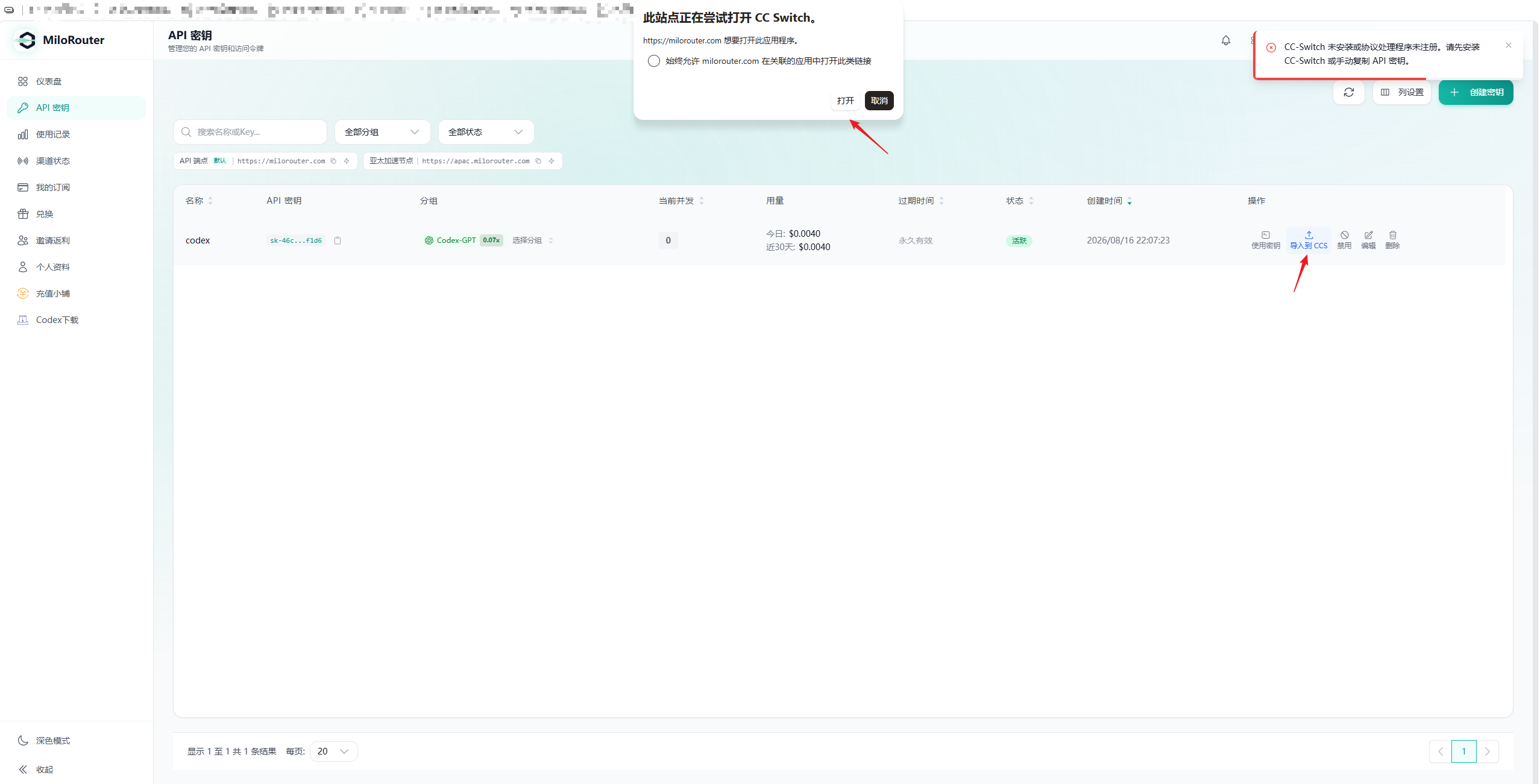
On the API Keys page, choose Import to CCS for the target key. Your browser will ask for permission to open CC Switch.
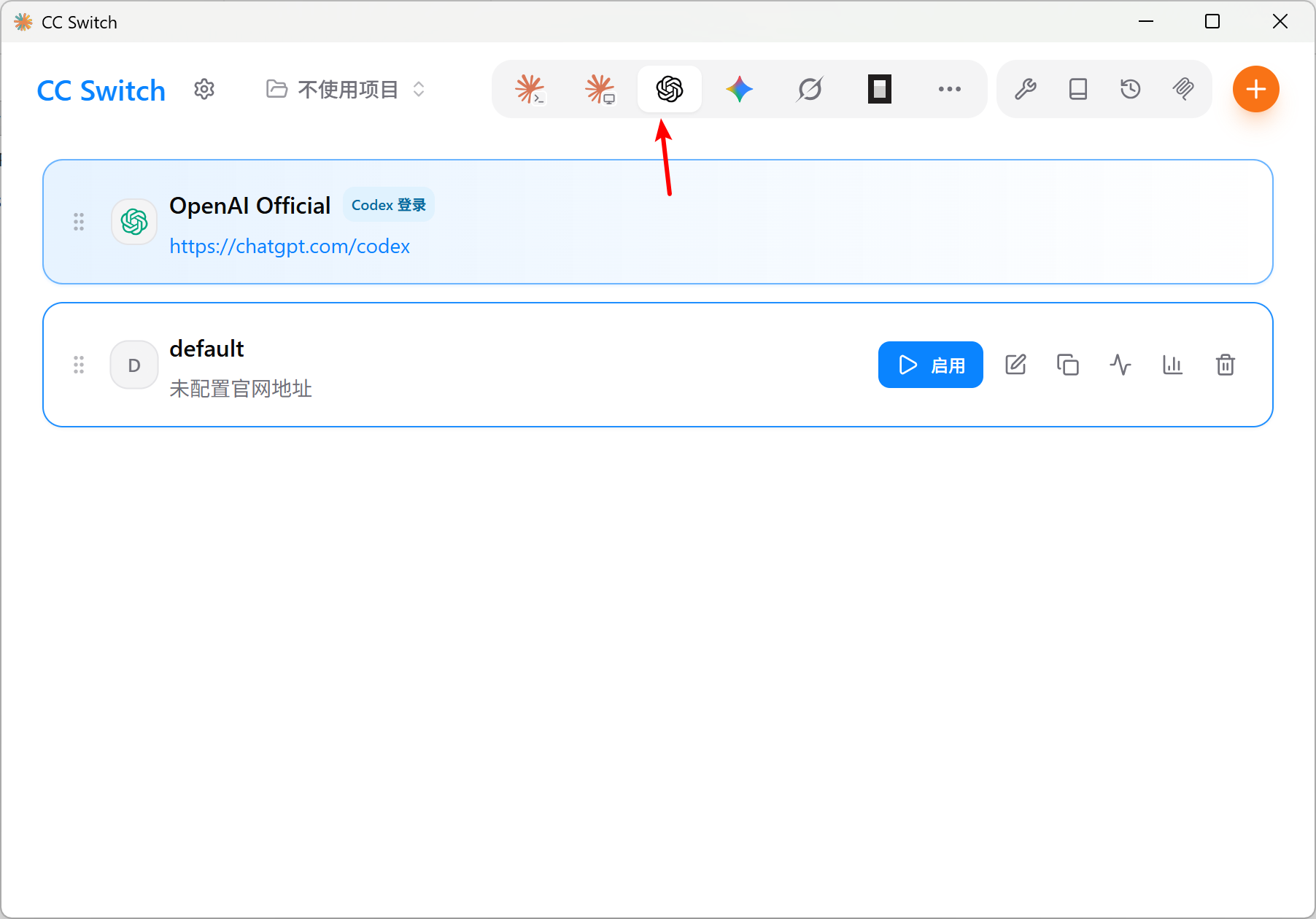
Select the Codex configuration
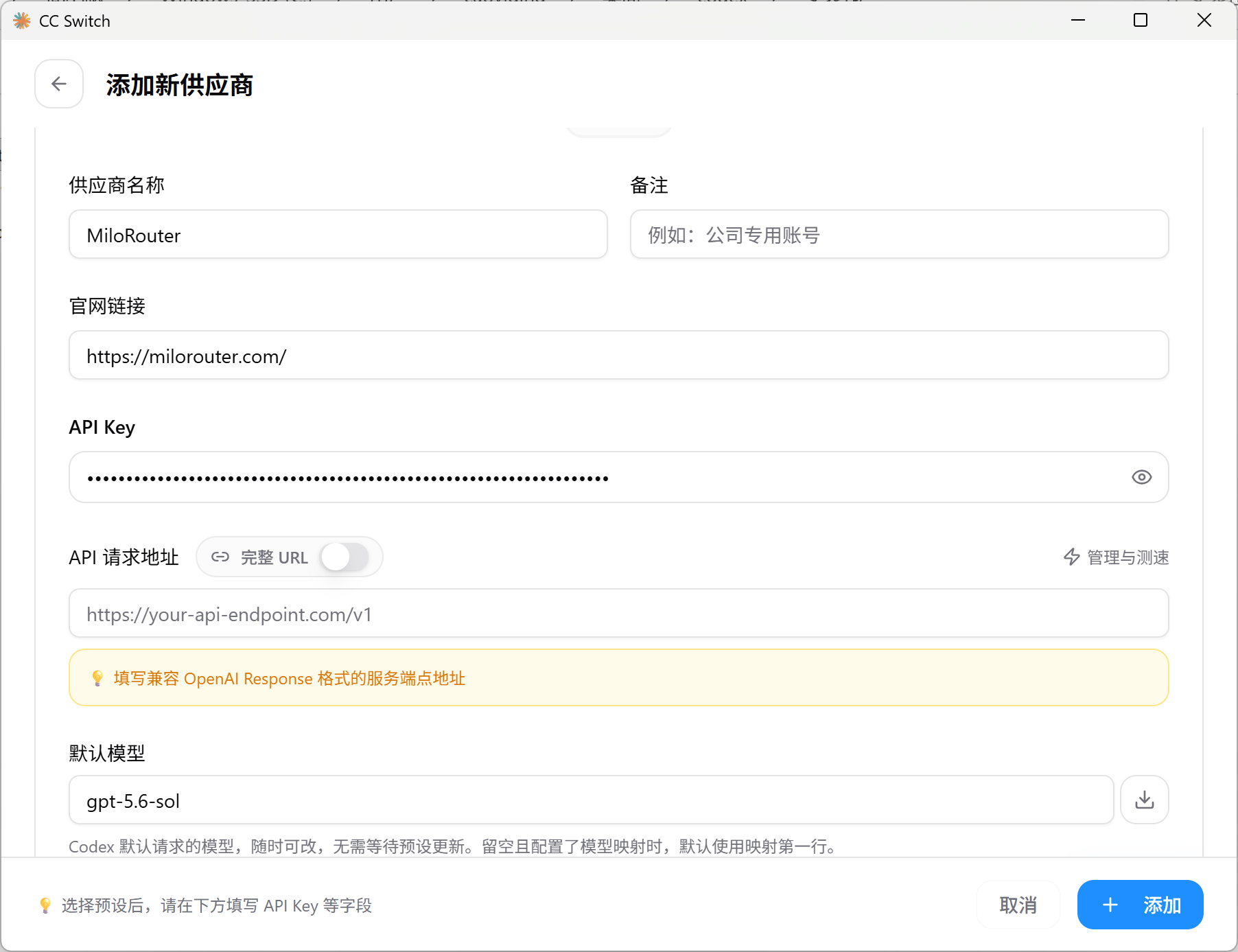
Configure MiloRouter manually
- 1
Provider name
Use a clear name such as MiloRouter.
- 2
Website
Enter https://milorouter.com.
- 3
API key
Use a key created in MiloRouter.
- 4
Request URL
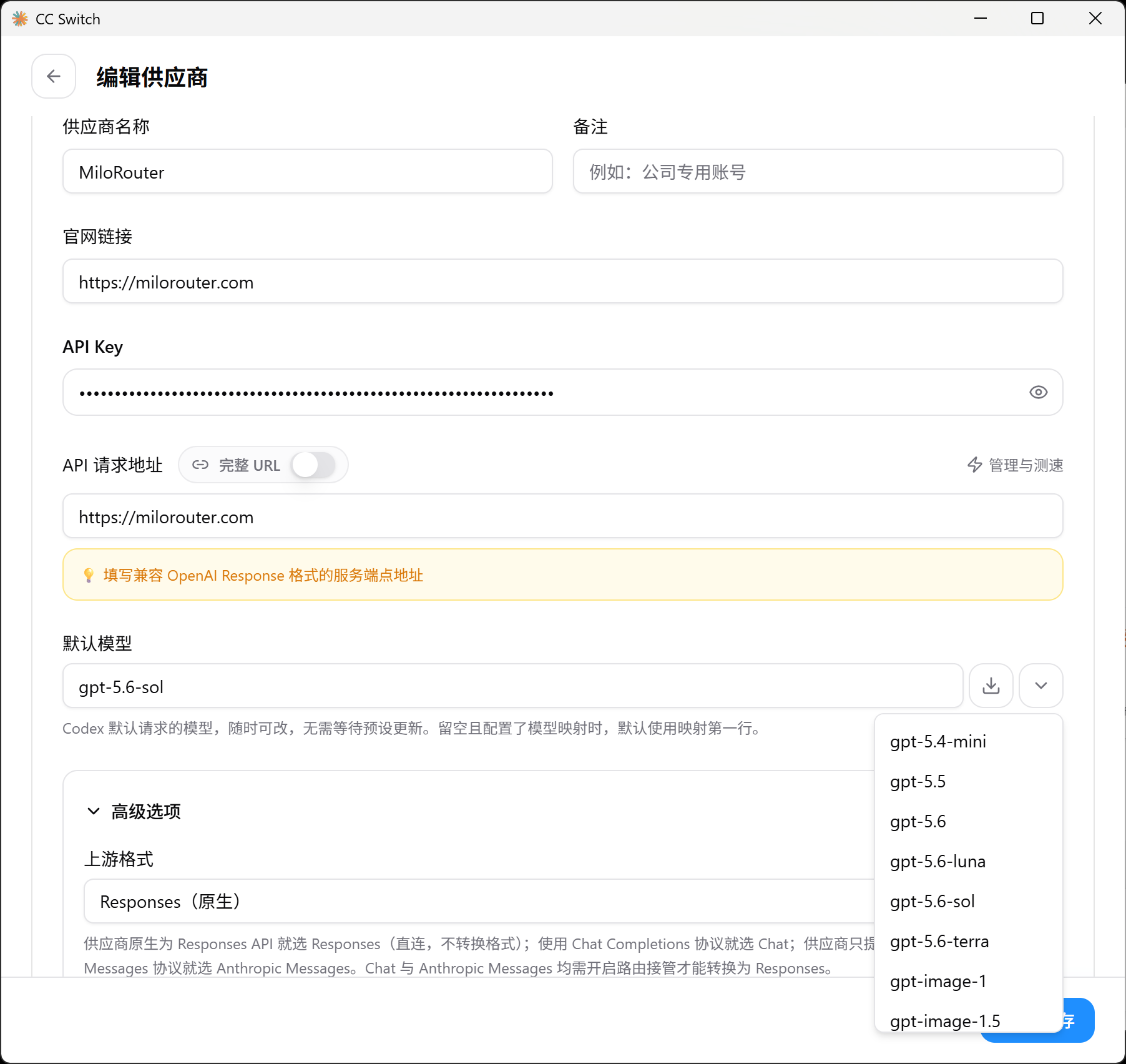
For Codex Responses, use https://milorouter.com and select the native Responses format.
Choose the model and protocol
Choose a model from the current model plaza that belongs to the key's group. For Codex Responses, select the native Responses format.
Verify the setup
- 1
Save and enable the provider
Check the URL, key, model, and protocol.
- 2
Restart Codex
Fully quit and reopen Codex Desktop, then create a new task.
- 3
Send a short request
Confirm that a reply is returned.
- 4
Check usage records
Verify the model, tokens, and cost in MiloRouter.